In this blog, I will show you how hierarchies work in SAP Seamless Planning and take a deep dive into where they are defined, how they are consumed in SAP Analytics Cloud, and how they influence aggregation, planning behavior, and application design.
Note: The screenshots reflect the system and release used for this implementation. Object names and user-interface details may differ in other tenants or later releases.
1. The Basics
SAP planning models use two hierarchy types:
- Parent-child hierarchies
- Level-based hierarchies
Core rule: A dimension can contain one or more hierarchies, but all hierarchies in that dimension must use the same type. Parent-child and level-based hierarchies cannot be mixed within a single dimension.
Parent-Child Hierarchies
A parent-child hierarchy stores the direct relationship between each member and its parent.
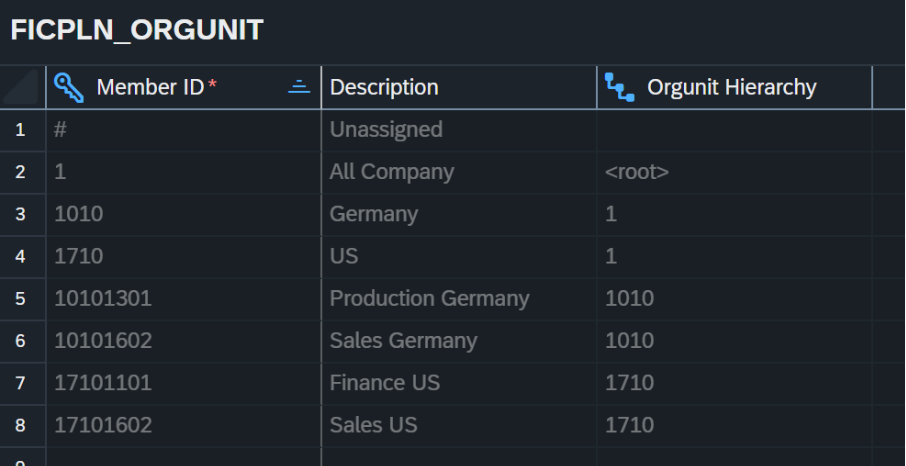
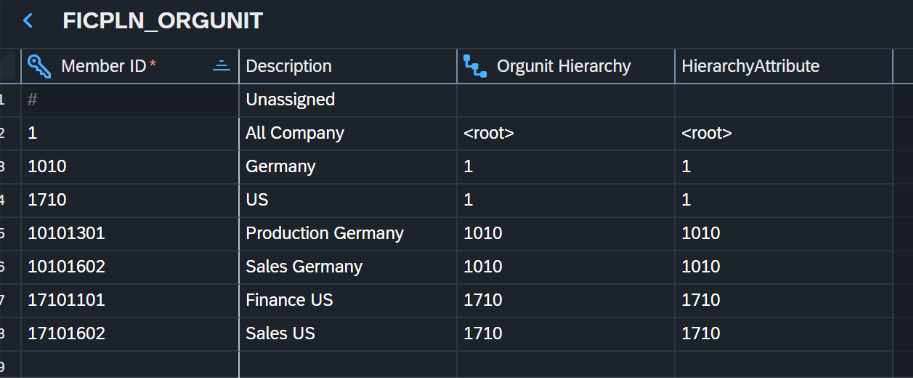
In this example, the Orgunit Hierarchy column contains the Member ID of the direct parent, Production Germany (10101301) is assigned to Germany (1010), and Germany is assigned to All Company (1). The top-level member is assigned to <root>.
Level-Based Hierarchies
A level-based hierarchy stores each hierarchy level in a separate attribute. This structure is appropriate when the hierarchy has stable, clearly defined levels.
In the following example, a position hierarchy is built from Employee Group, Leadership, and Position:
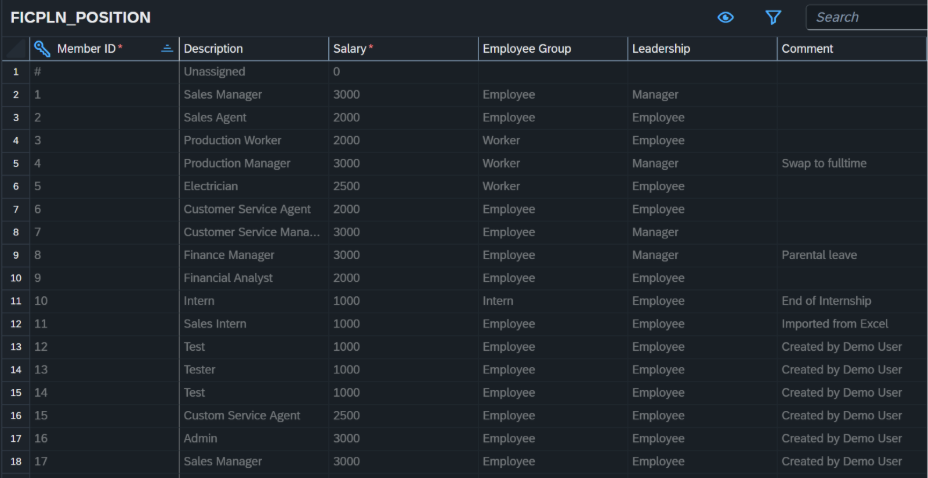
Employee Group and Leadership are maintained as attributes for every position. SAP Analytics Cloud then constructs the hierarchy path as Employee Group > Leadership > Position.
2. Interacting with Hierarchies in Planning
Once hierarchies are available in a planning model, they can drive both user interaction and planning logic.
Hierarchy-Aware Filtering
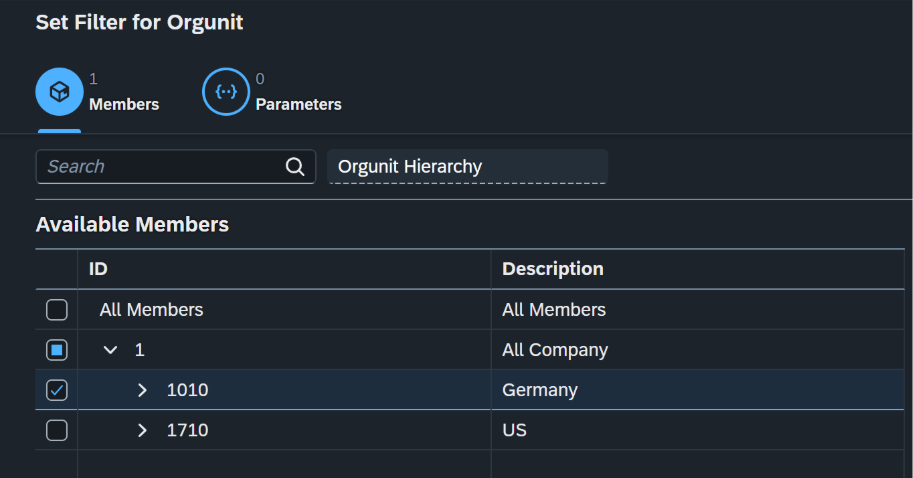
Input controls can display members in hierarchy form, allowing users to select individual members, branches, or complete subtrees.
 |  |
Hierarchy-Aware Data Actions
Hierarchies can also define the scope of a data action. In the following example, selecting Germany limits the operation to Germany and its base members.
Directly selected as a filter in a copy step:
As a filter in advanced scripting:

Maintaining Hierarchies with Scripting
Planning applications can update dimension members through scripting. The example below changes an attribute on a position and updates the parent assignment of an organization unit.

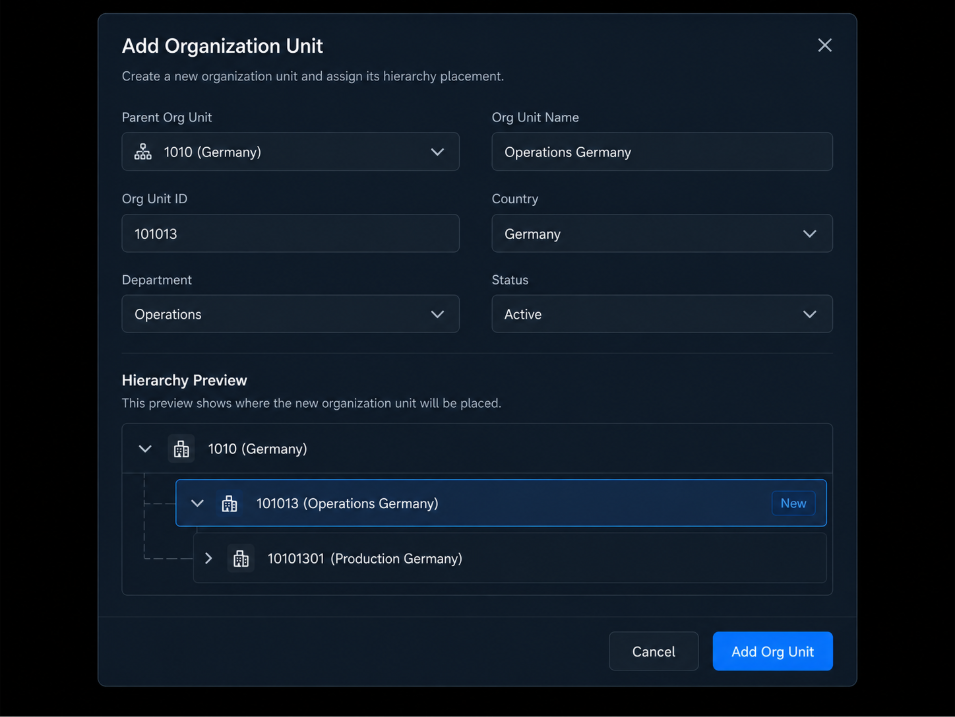
By parameterizing the member ID and target parent, this pattern can support controlled hierarchy maintenance by planning users, for example this could be used with a pop-up that creates new master data in the planning process that is adding new members to a hierarchy.
Here a planner can add a new organizational unit and place it directly in the hierarchy:
3. Seamless Hierarchies in SAP Datasphere
Parent-Child Hierarchies:
To reuse parent-child planning hierarchies in SAP Datasphere, additional modeling is required.
After a public dimension is stored in and exposed to SAP Datasphere, generated artifacts provide access to the dimension data and its texts.
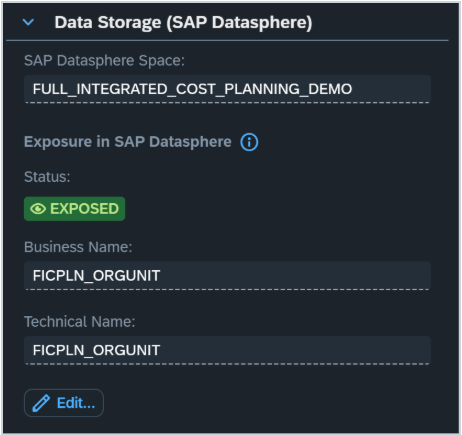
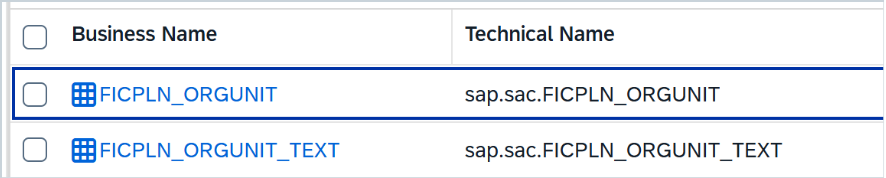
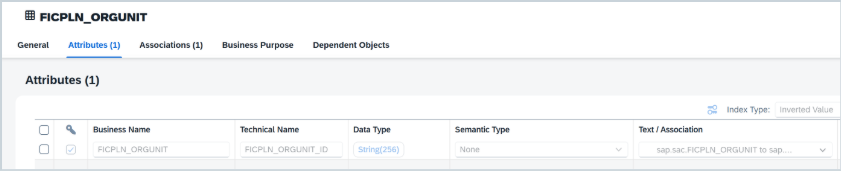
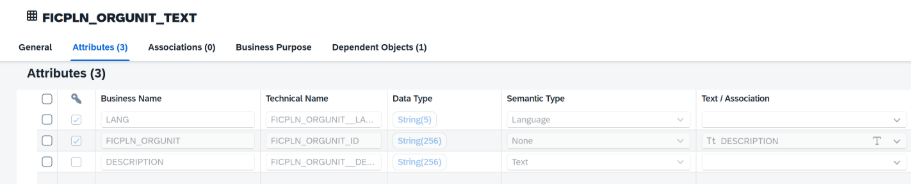
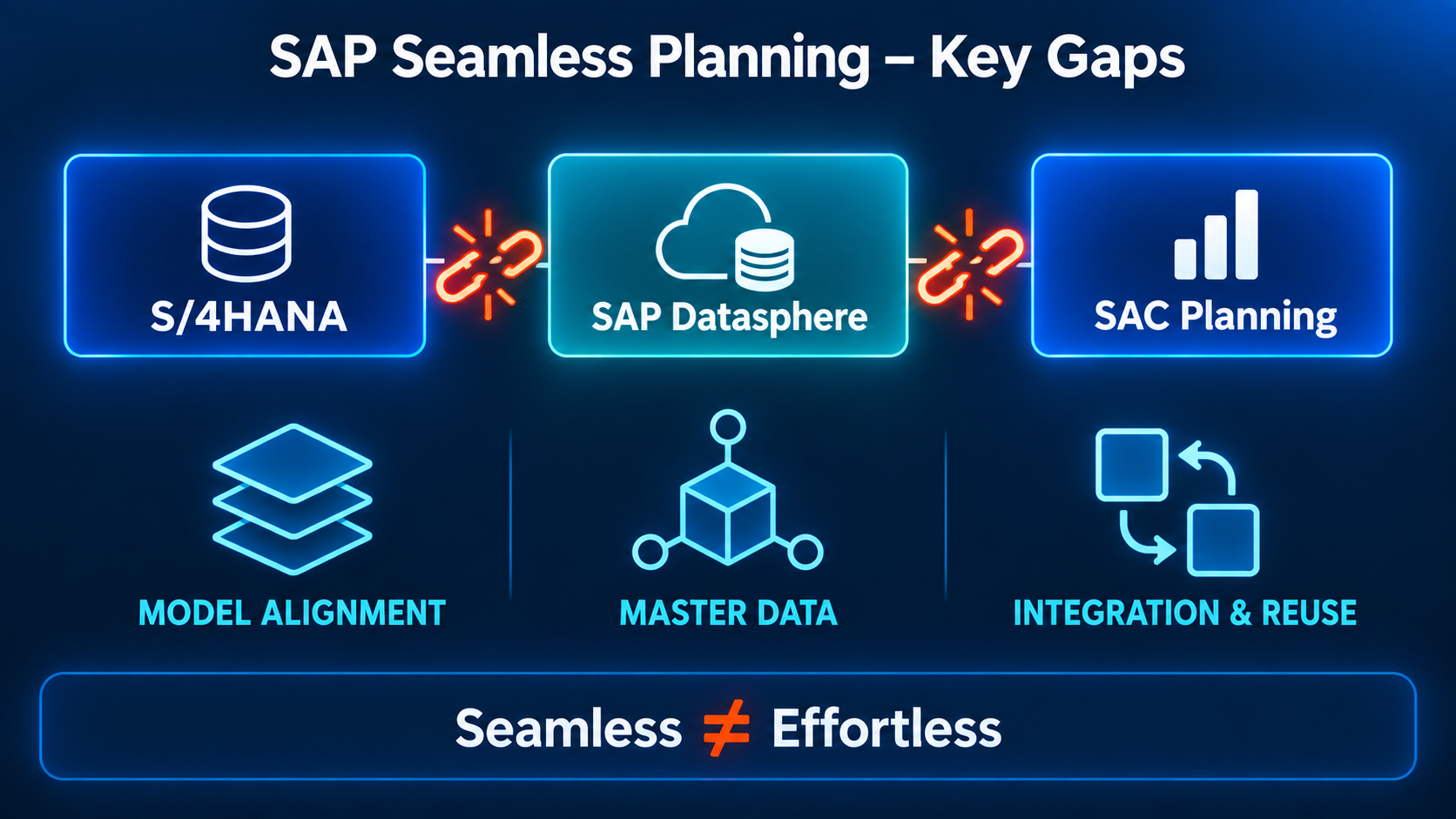
In the setup shown here, however, the Orgunit parent-child hierarchy is not exposed as a hierarchy or attribute at all. Seamless Planning is still under development and in the future, this might work out of the box. The following workaround allows the reuse of planning hierarchies in SAP Datasphere in the meantime.
Synchronization requirement: This design stores the parent assignment twice. Every script, import job, or API process that changes the hierarchy must update both the hierarchy field and the mirrored attribute.
Step 1 – Mirror the Parent Assignment
Add a standard attribute, such as HierarchyAttribute, to the SAP Analytics Cloud dimension. Populate it with the same parent ID that is stored in the parent-child hierarchy field.
Step 2 – Verify the Attribute in SAP Datasphere
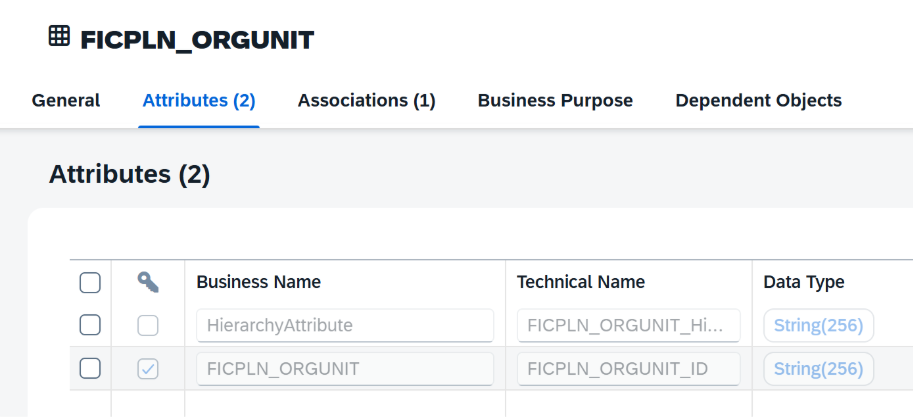
After the dimension is exposed, the mirrored attribute is available in the generated SAP Datasphere dimension artifact.
Step 3 – Create a Hierarchy View
Create a SQL view that returns the parent and child IDs required by a parent-child hierarchy:
SELECT
„FICPLN_ORGUNIT_HierarchyAttribute“ AS „Parent“,
„FICPLN_ORGUNIT_ID“ AS „Child“
FROM „sap.sac.FICPLN_ORGUNIT“;
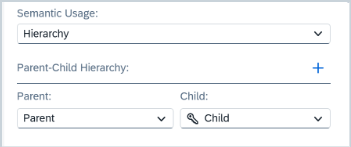
Set the semantic usage of the view to Hierarchy, then map the Parent and Child columns in the parent-child hierarchy configuration.
Step 4 – Build the Custom Dimension View
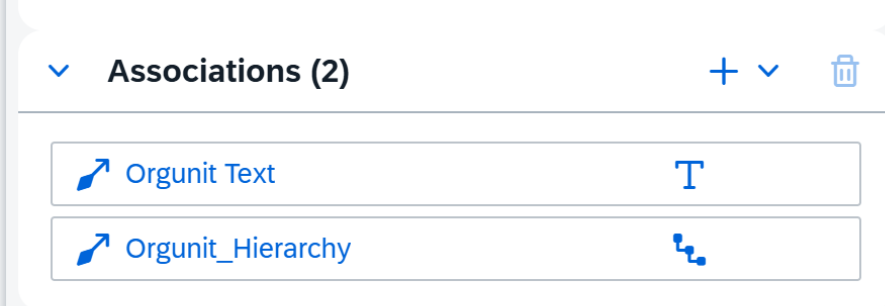
Create a custom dimension view that contains the required attributes from SAP Analytics Cloud planning or other SAP Datasphere sources. Associate the text entity and the hierarchy view with this dimension.
Step 5 – Consume the Hierarchy in an Analytic Model
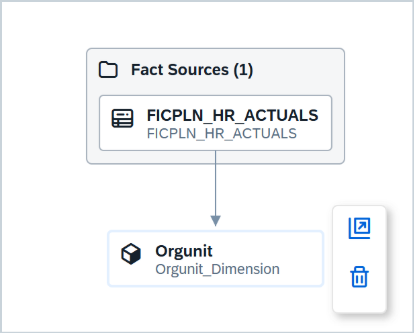
Use the custom dimension in the analytic model as association with the relevant fact source. The hierarchy is then available for reporting and drill-down.
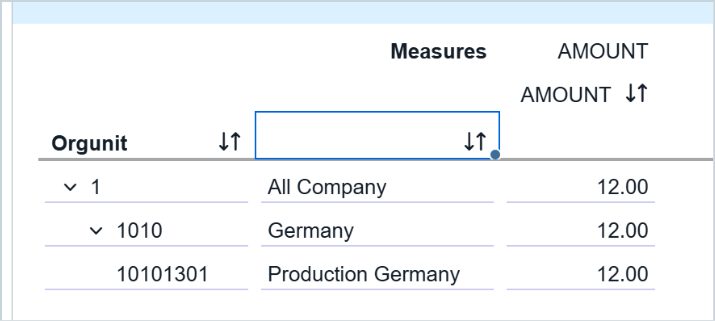
Step 6 – Confirm Runtime Behavior
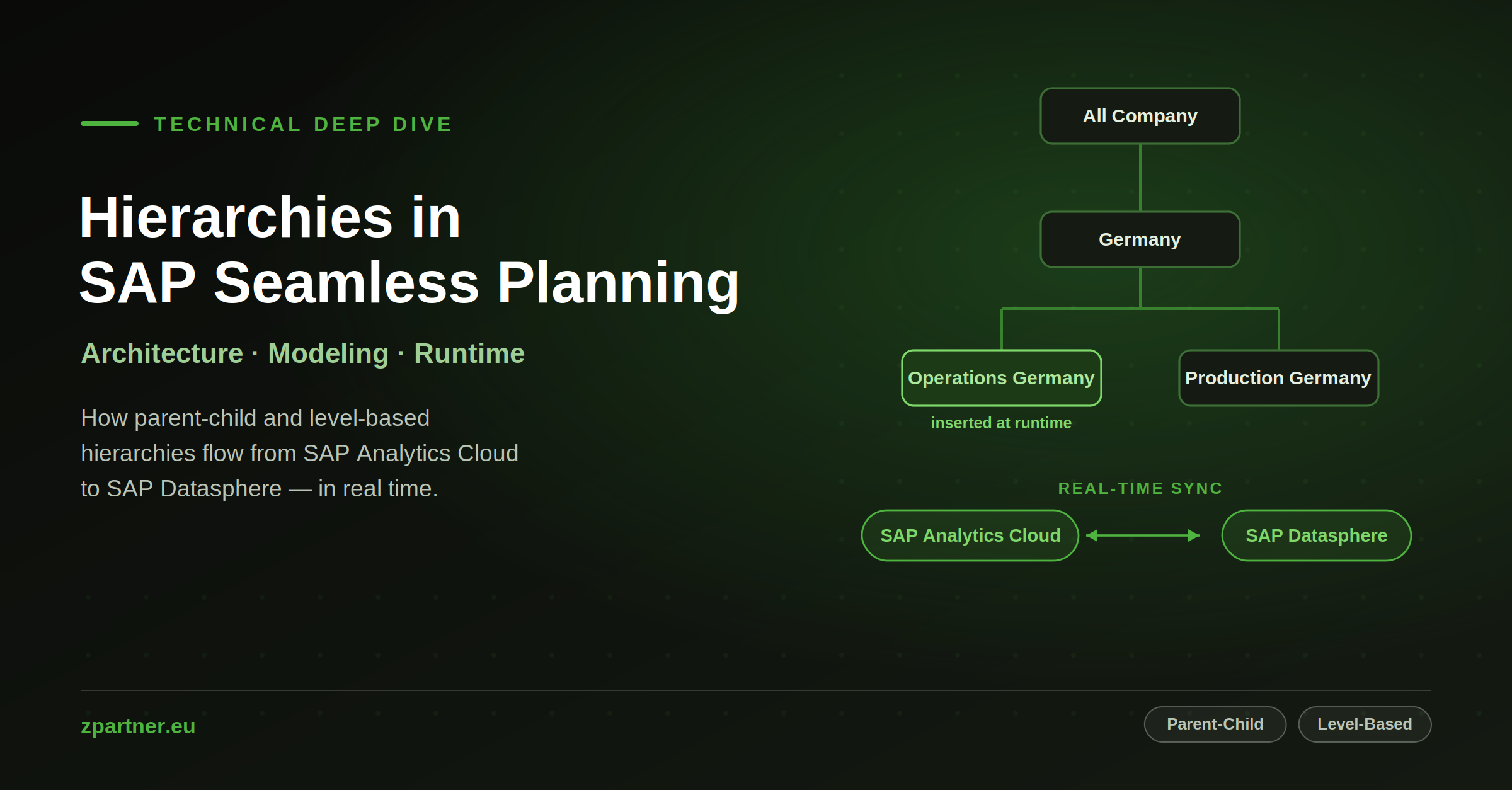
In this example, a planner inserts Operations Germany between Germany and Production Germany. When the mirrored attribute is updated, the SAP Datasphere hierarchy changes accordingly in real-time.
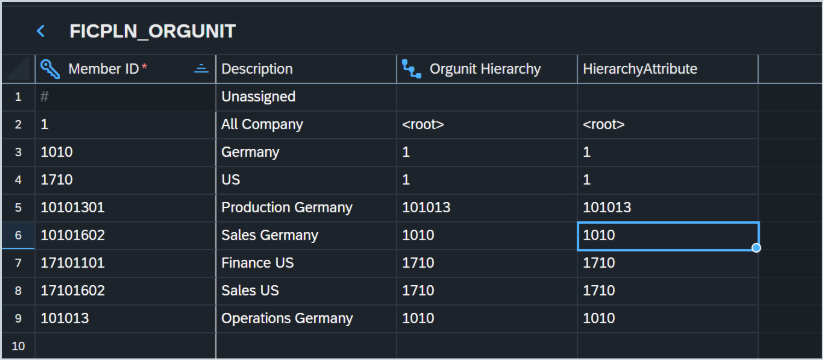
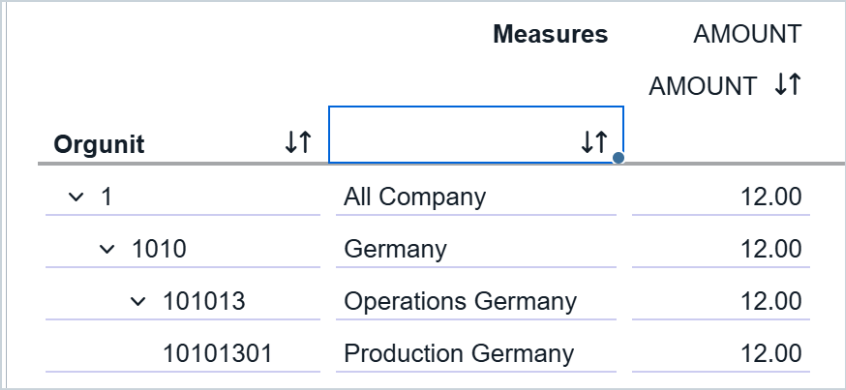
This workaround makes a parent-child hierarchy maintained in SAP Analytics Cloud planning available to an SAP Datasphere analytic model. Its main trade-off is duplicated parent information that requires the hierarchy field and the mirrored attribute to always remain synchronized.
Level-based Hierarchies:
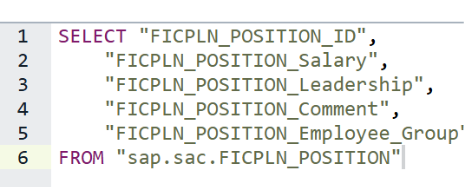
To reuse level-based planning hierarchies in SAP Datasphere, only minimal additional modeling and no workaround is required. The hierarchy can be directly based on the per default exported dimension master-data table in a self-created dimension view.
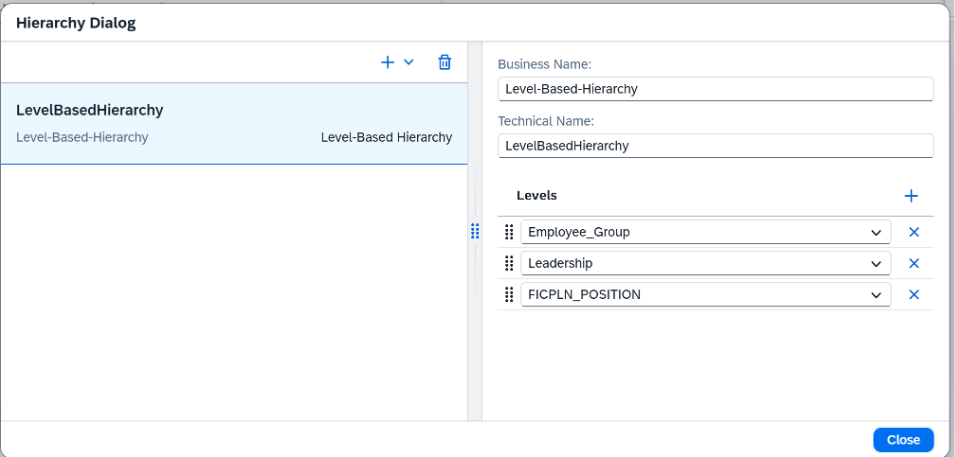
This hierarchy also updates in real time if a planner decides to change the employee group of a position, for example.