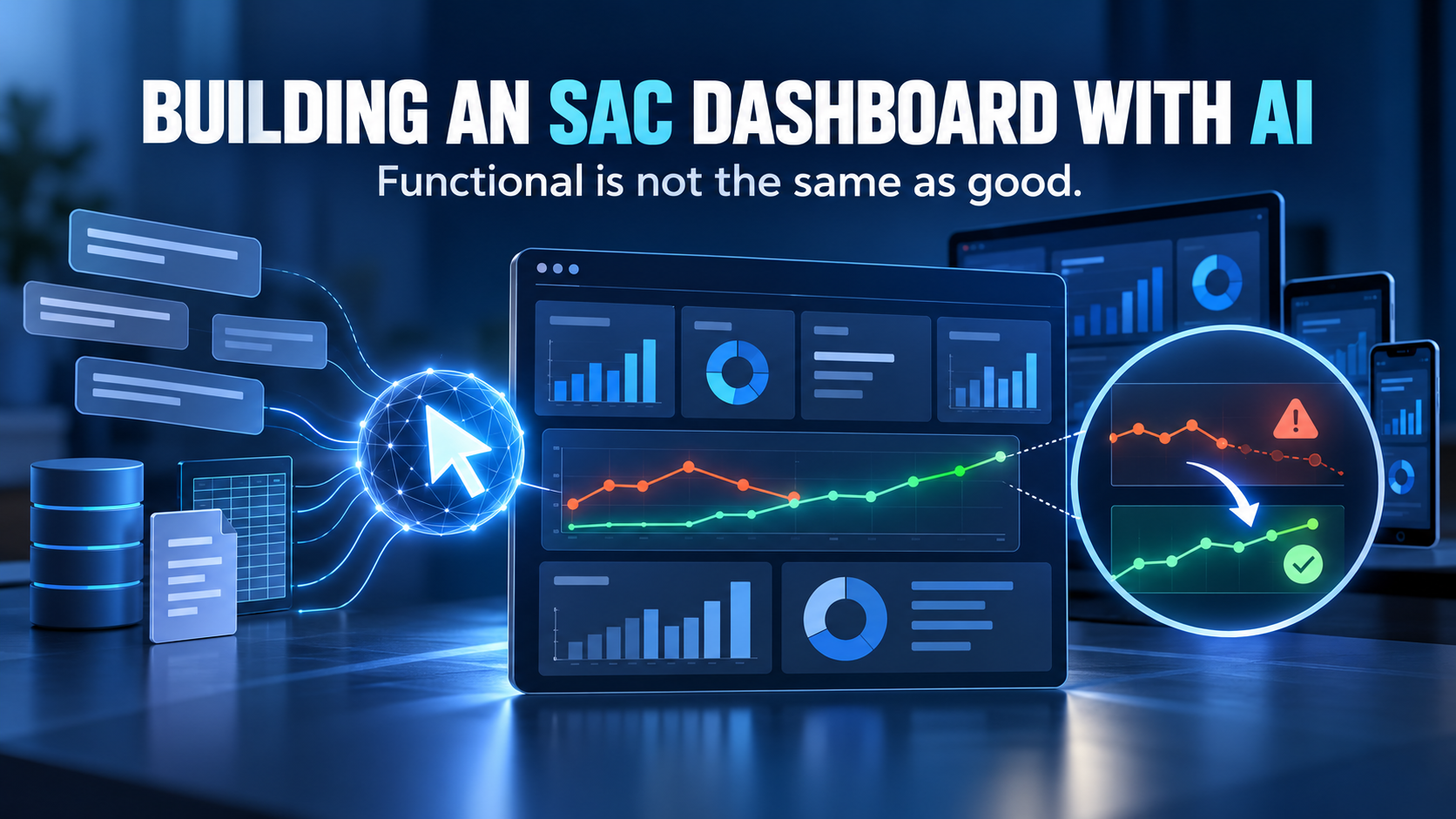
A planning request often arrives as a short instruction: use the new value from July, move an allocation to another area, or change several rows together. We used an AI coding assistant to build a custom planning widget in SAP Analytics Cloud around these requests. An existing planning story supplied the model and business rules. Our task was to bring its navigation, monthly inputs and recurring actions into one consistent interface.
How we built the workbench
The model, planning cycles and Data Actions stayed in SAC. We built a JavaScript Web Component to present the data and capture user actions. A JSON descriptor defines its methods, events and data binding, while story scripts connect the widget to the planning story.
Reading uses the existing model binding. Writes go through native planning APIs and the model’s Data Actions, supported by hidden native planning tables. A separate helper supplies the Actual reference.
The build took shape through short rounds of feedback and live tests. For example, a late data response could arrive after the planner had already chosen another organization. The widget had to recognise that the selection had changed and ignore the old response. AI helped us revise the code; testing in the tenant established whether the behaviour was right.
The result is one visible workbench for choosing a planning area, entering monthly values and carrying out the associated actions. Although our prototype uses capacity data, the same sequence occurs in cost, sales and project planning. The first design decision was what to load before anyone enters a value.
Find the planning area first
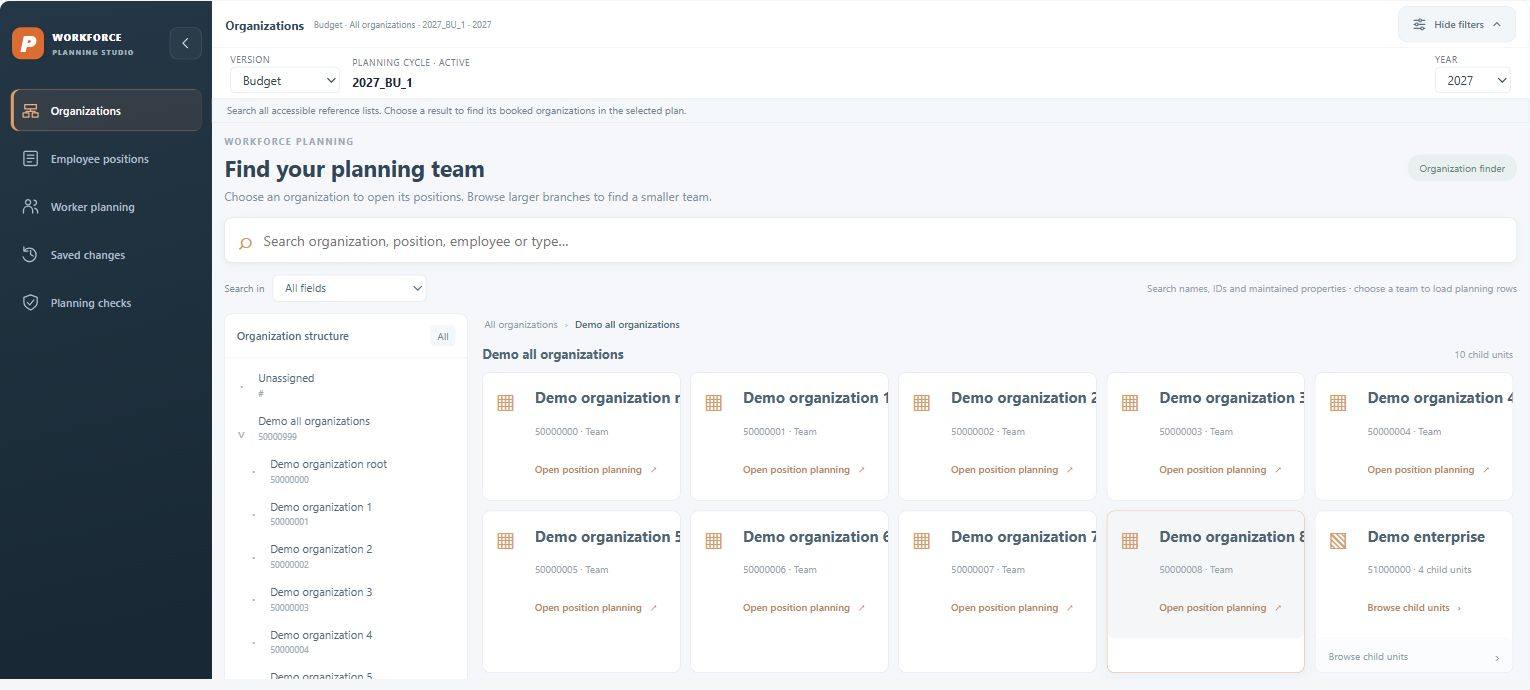
The workbench opens on a finder. In our example, users browse the organization hierarchy or search names, IDs and maintained attributes in the reference lists. Choosing a sufficiently small unit opens its planning rows. A project or product hierarchy could serve the same purpose in another model.
The planner’s selection also sets the boundary for the detailed read. There is little reason to fetch every monthly value in the model before someone has decided which area to work on.
Why we changed the loading sequence
In an early test, the reader loaded 263,710 detail records. In the same page trace, one observed request had roughly 104 MB of decoded data and lasted about 29 seconds. A 22.6-second browser long task followed; the widget’s recorded DOM render took 13 milliseconds. These observations did not pin every delay on one request or one piece of code.
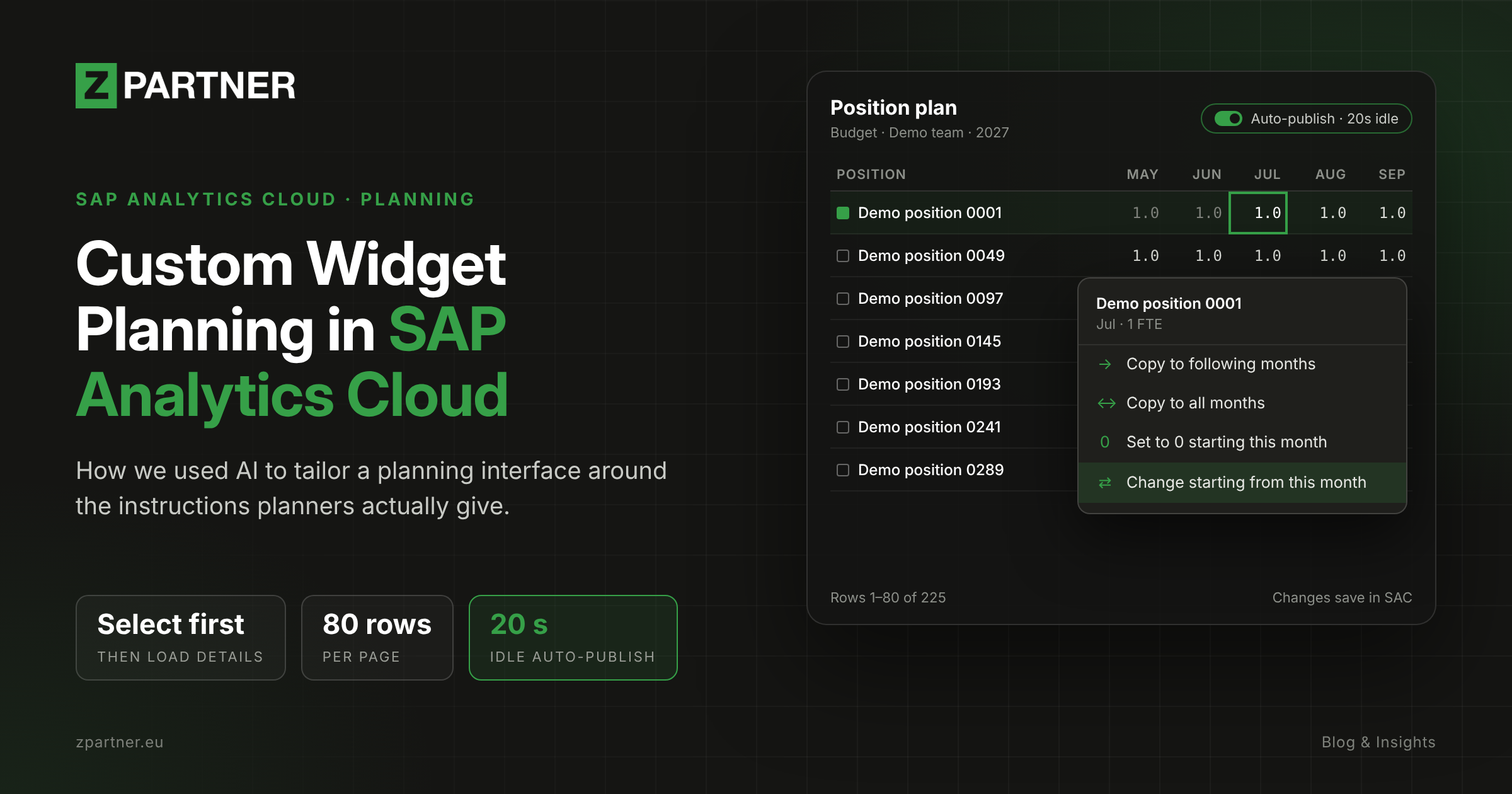
We therefore read the reference data needed for navigation first and request detailed monthly values after a selection. The grid shows 80 rows per page. Query scope controls how much data comes back; paging controls how much of it the browser renders. A small screen alone does not guarantee a small response.
Keep the effective month with the change
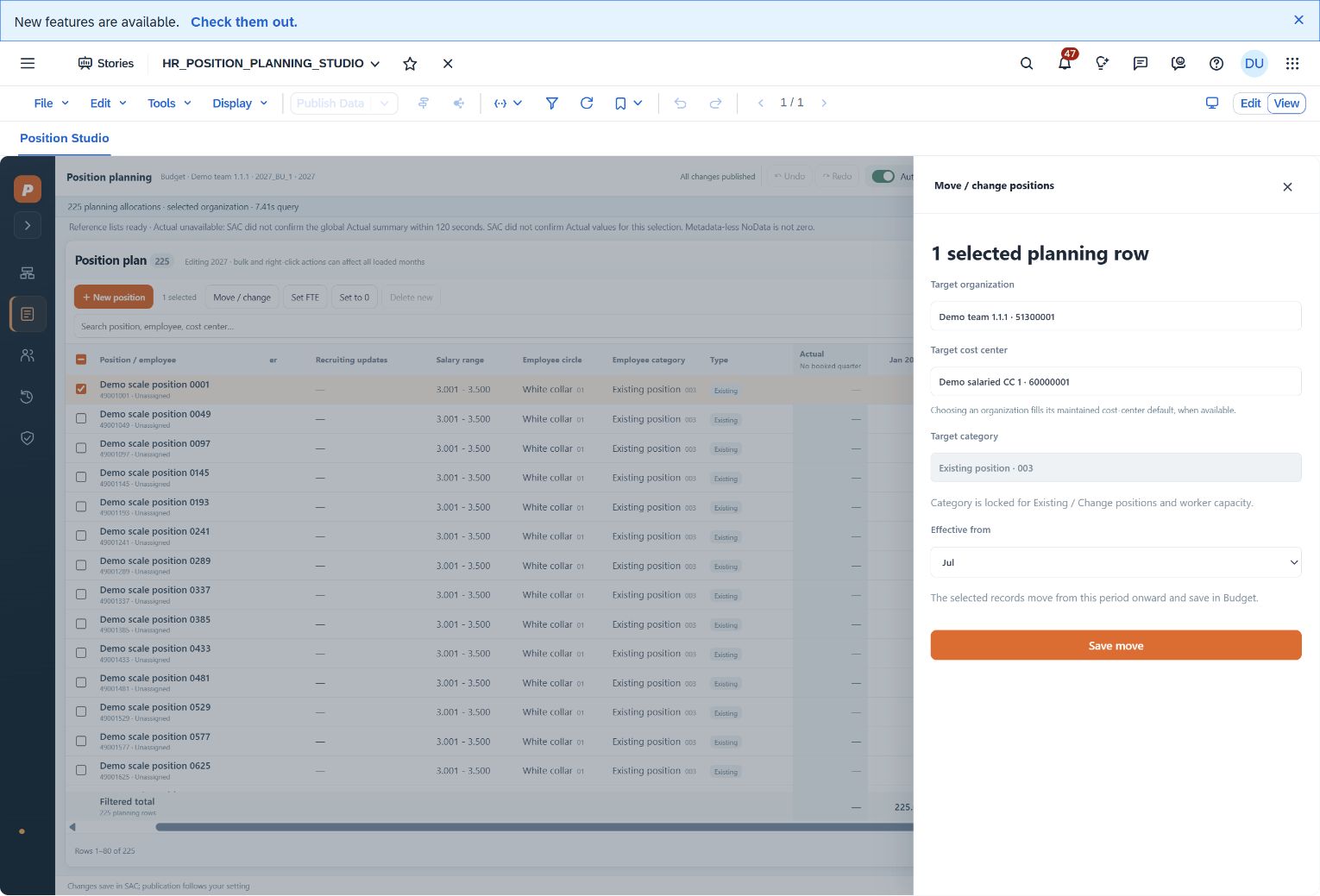
Once the right rows are on screen, their context needs to travel into the next action. After selecting several rows, the planner opens the move or change panel and chooses a target and effective month. Moving an allocation from July means applying the correct source and destination dimensions from July onward, while leaving the earlier periods intact. The model’s rules still determine what is valid.
Use the selected cell as the starting point
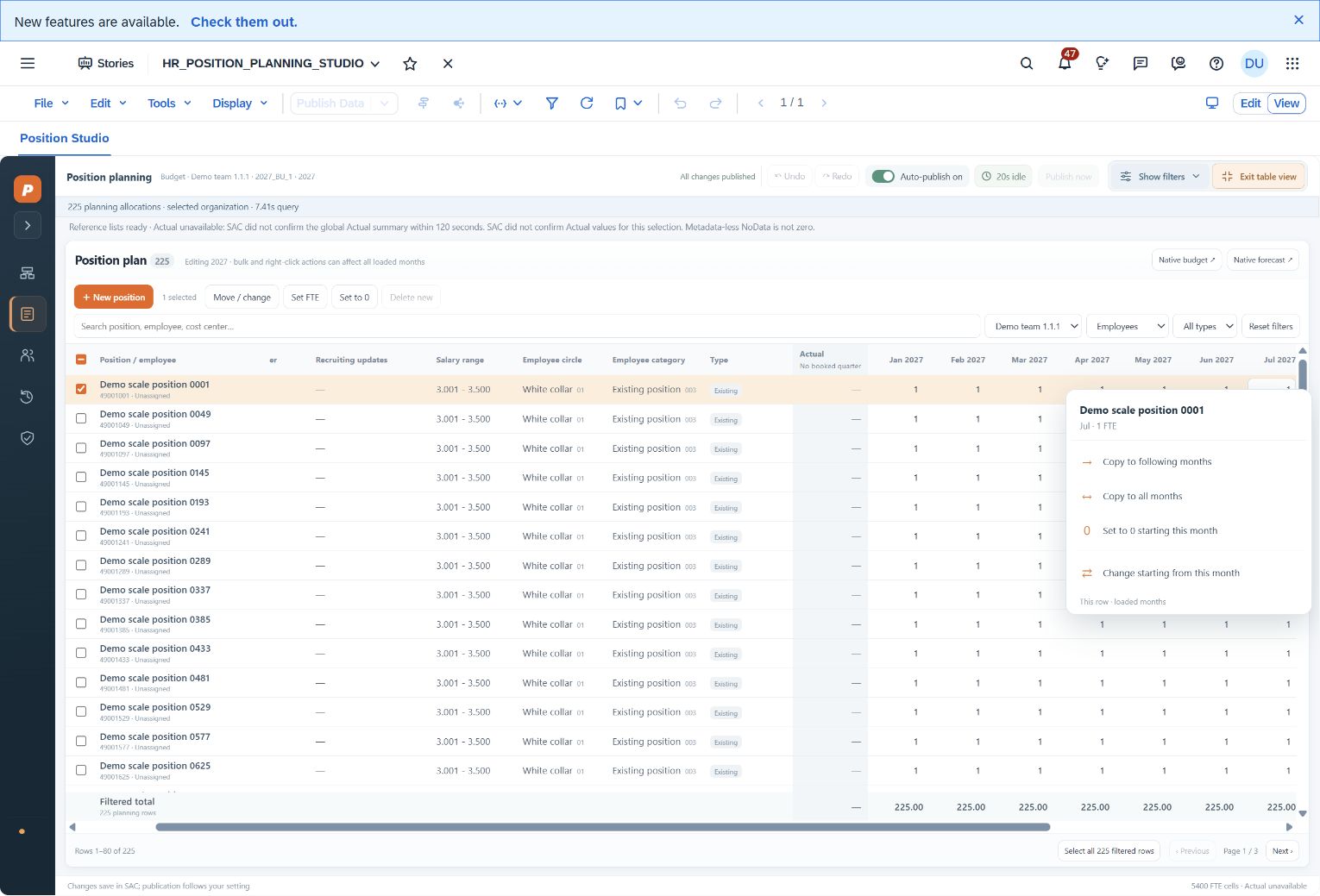
The effective month can also come directly from the selected cell. Right-clicking a July value offers commands to copy it to following months or all loaded months, set values to zero from July onward, or open the change panel with July already selected. The planner has supplied part of the instruction simply by choosing the cell.
Native SAC tables already support direct input, copying and context menus. The custom widget lets us decide which commands belong together and how they use the current selection. A request such as ‘stop this allocation from September’ can become a specific action in the interface, with the model logic behind it.
Keep the grid steady while people work
That interaction only helps if the surrounding screen stays put. Users can enter values directly and move between cells with the arrow keys. Expanding the table folds away the navigation and filters; returning restores the previous layout. Selection, scroll position and unfinished input survive those layout changes.
Member searches show descriptions alongside IDs, so a planner can search for a destination by name rather than remember a code. These details made up much of the refinement work. Each change had to fit the surrounding interaction, including the save state shown after an edit.
Show what happens after an edit
After an edit, the planner needs to know whether the input is still being saved or has been published. The widget shows those states separately. With auto-publish enabled, it waits for 20 seconds without user activity before publishing. A countdown beside the switch shows the remaining time. Typing, clicking or scrolling restarts it; users can pause auto-publish or publish explicitly.
This timing is our application behaviour built on SAC’s publication mechanism. Permissions, locks and conflicts still apply. Undo and redo cover value edits in the current session. Pending input is retained locally and can be offered for recovery after a reload when the planning context still matches. Structural changes need their own recovery handling.
Use the pattern where the task repeats
The value of this approach lies in recurring work. A cost planner might move a budget from a chosen month, while a project controller reallocates planned effort between assignments. Those processes could use a similar interface, but each would still need its own dimensions, validation and actions. Reusing the screen does not supply the business model.
That is also the point at which to decide whether custom development is justified. A native SAC table is a good fit for straightforward entry and flexible analysis. We would consider a widget when the same task repeatedly calls for a particular selection, effective date or sequence of actions.
Allow for testing and maintenance
A custom grid needs an owner. Keyboard access, error messages, browser behaviour and SAC updates all need testing. Deployment includes the widget files, model bindings and story event scripts. Missing one handler can leave a finished-looking screen waiting for its planning cycle. Those dependencies need to be documented and tested together.
Performance remains tied to the model and the requested data. Recovery and automatic publication also need clear limits when several people work in the same public version. A custom widget does not inherit every native feature automatically.
We came away with a working prototype and a more precise view of the effort involved. AI was useful throughout the build, especially when requirements changed. The lasting work is making each interaction behave correctly against the model, then keeping that behaviour reliable as the story and SAC evolve.